

JSON Formatter PLUS is a very useful tool for formatting and creating new json formatted documents.
What is JSON?
JSON (JavaScript Object Notation) is a lightweight, text-based data interchange format. It is easy for us to read and write, and easy for computer to parse and generate. JSON is language-independent but uses conventions familiar to programmers of the C-family of languages (C, C++, JavaScript, Java, Python, etc.). Data in JSON is organized as key‑value pairs and ordered lists, supporting basic data types such as strings, numbers, booleans, null, arrays, and objects.
What is a JSON file?
A JSON file is a plain text file that stores data in JSON format. It typically has the .json file extension. Such files are commonly used to transmit data between a server and a web application (e.g., in APIs), to store configuration settings, or to save structured data for later use. A valid JSON file must contain only a single JSON object, array, or value (like a string or number), following strict syntax rules (e.g., keys must be double‑quoted, no trailing commas).
How to open json file?
The JSON Formatter PLUS App supports three ways to open your JSON file.
First method: Launch JSON Formatter PLUS, then select “Open File” in the upper‑right corner of the window. In the pop‑up “Open File” dialog, locate your .json file and select it.
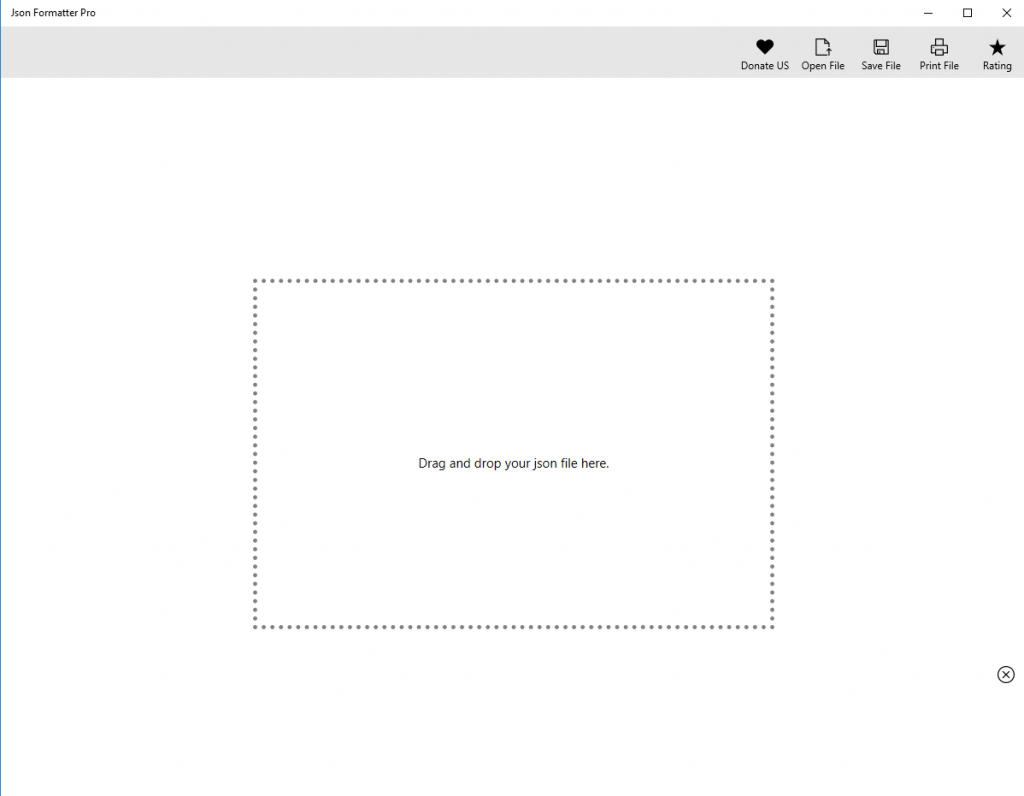
Second method: After launching JSON Formatter PLUS, simply drag and drop the .json file you want to open onto the dotted area in the middle of the window.
Third method: In the system’s File Explorer, locate your .json file, right‑click on it, and from the Open With menu that appears, choose JSON Formatter PLUS.
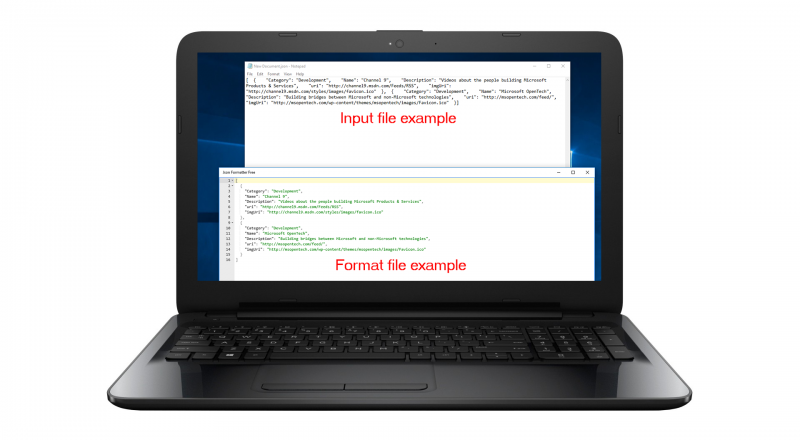
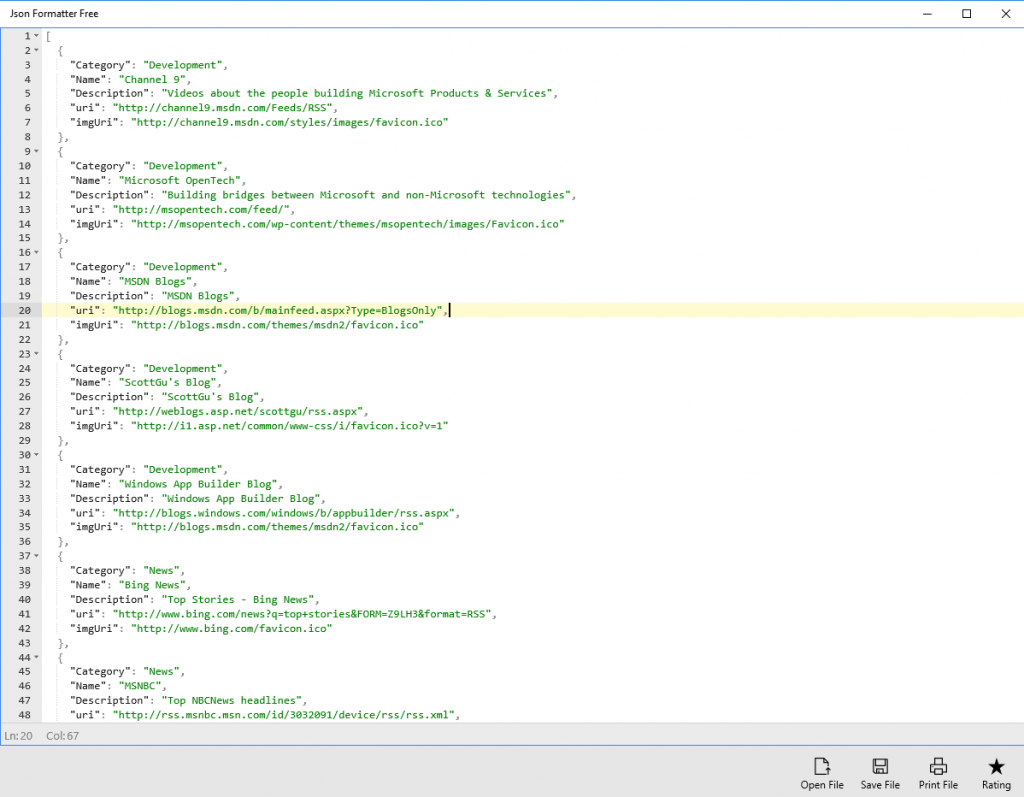
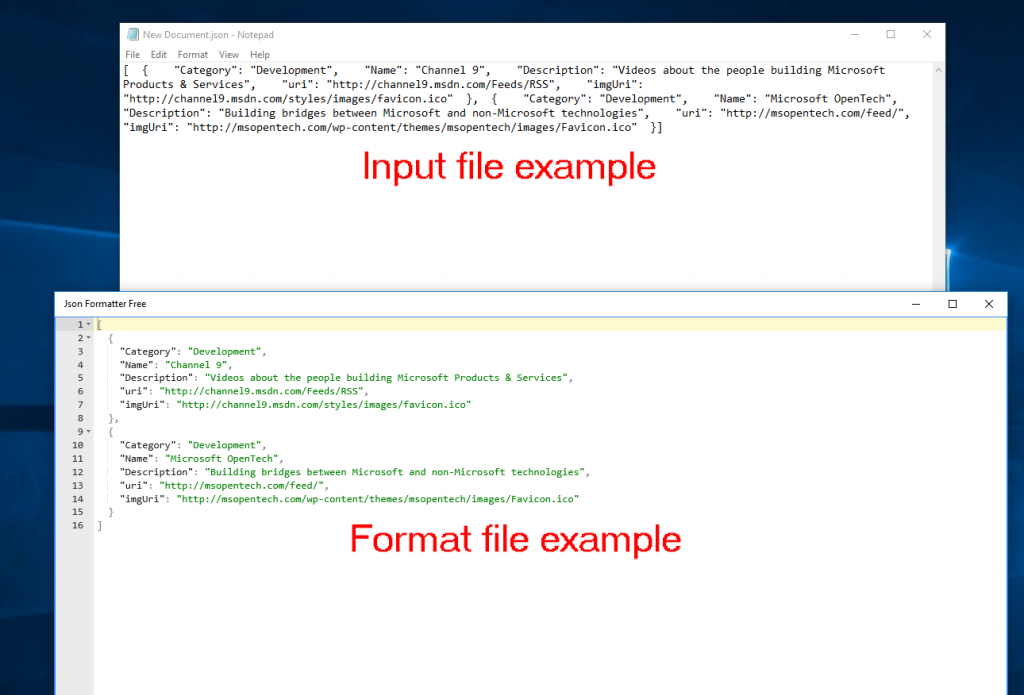
Once the file is opened, the JSON text will be automatically formatted and displayed. Keywords are shown in color for easy viewing and comparison.
The style after the file is opened
Contrast formatted styles with plain text styles
How to save an edited .json file.
Select “Save File” in the upper‑right corner of the window, and the Save File dialog will pop up. Choose the location where you want to save the file, enter the desired file name, and then save it.
How to print documents
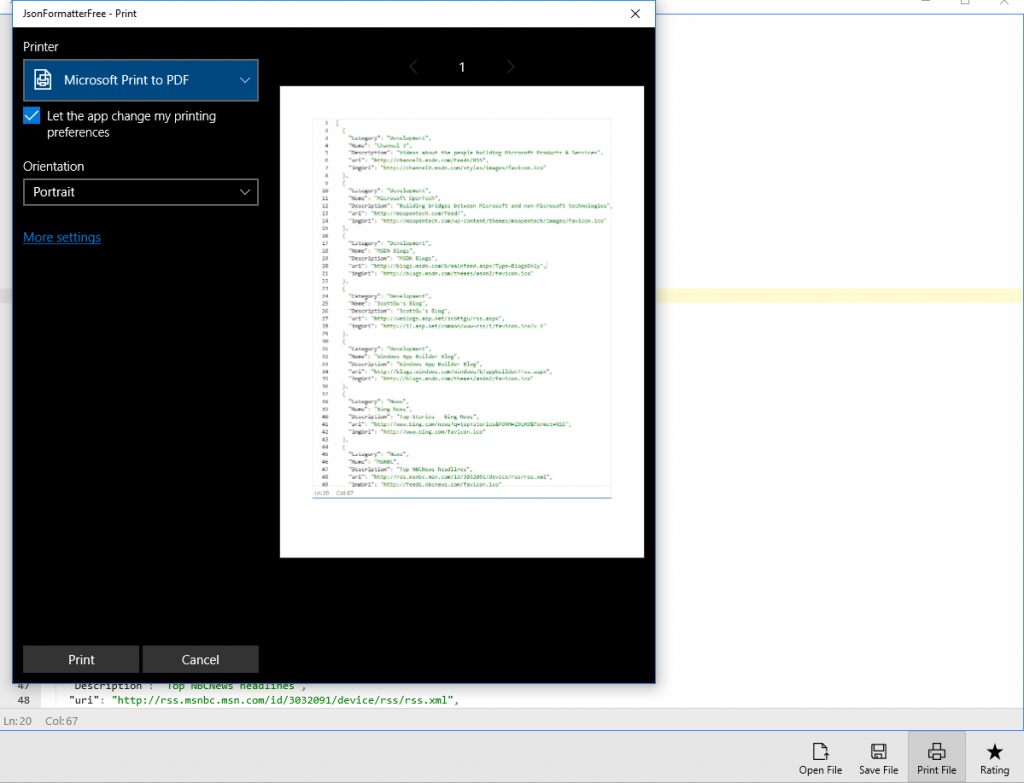
Select “Print File” in the upper‑right corner of the window, and the print dialog will pop up. You can adjust the print settings or just print using the default settings.