
Tiny XLSX Editor is a fast, lightweight spreadsheet editor for Windows. It opens your Excel workbooks in a clean, familiar grid, so you can make a quick change or put together a new sheet without starting a heavyweight office suite.
Tiny XLSX – User Guide
A fast, focused spreadsheet editor for Windows. This guide covers the basics: opening and saving workbooks, entering and formatting data, using formulas, charts and filters, working with worksheets, and exporting to PDF.
Getting started
Install Tiny XLSX from the Microsoft Store, then launch it from the Start menu. The app opens with a blank workbook, ready for typing. The first time it starts, it also opens this guide in your browser.
Everything runs locally on your PC. Workbooks are never uploaded, and an internet connection is not required to open, edit, save or export.
System requirements
- Windows 10 or Windows 11 (64-bit)
- No additional software required
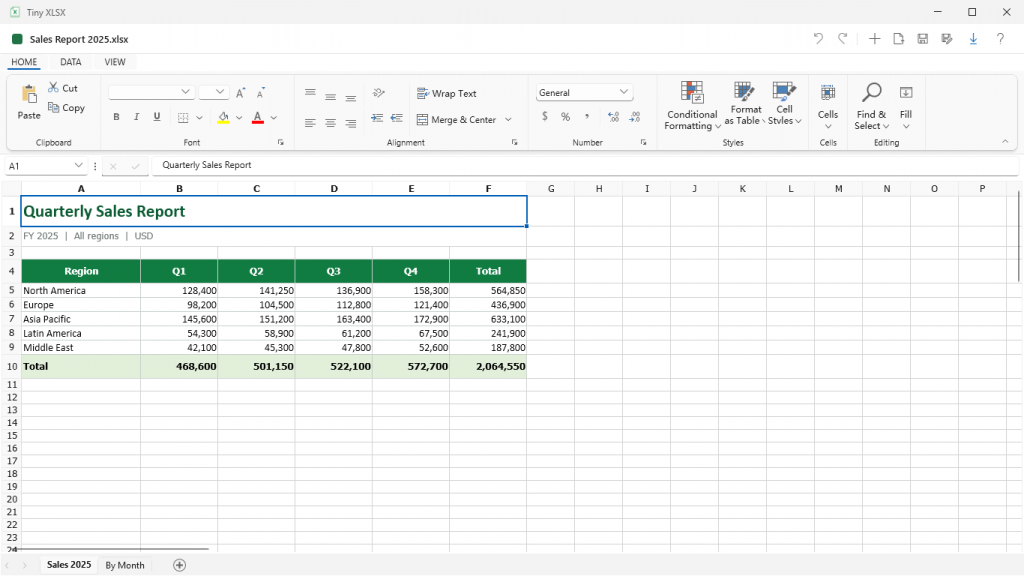
The window at a glance
Top bar
The bar above the ribbon shows the file name, with a · modified marker while there are unsaved changes, and provides the main file actions:
All file commands live in this bar. The ribbon’s own File entry is hidden while the app is using its compact window frame.
Ribbon
Commands are grouped on standard spreadsheet tabs:
- Home – clipboard, font, alignment, number formats, cell styles, borders and fill, insert and delete cells, sort and filter, find and select
- Insert – tables, pictures, charts, text boxes, headers and footers, sparklines
- Page Layout – margins, orientation, print area, gridlines and headings, freeze panes
- Formulas – function library, defined names, auditing and calculation options
- Data – sorting, filtering, data tools and grouping
- View – zoom, gridlines, headings and sheet layout
Formula bar and sheet area
Below the ribbon, the name box on the left shows the active cell or selection, and the formula bar on the right shows (and lets you edit) the cell contents. The sheet area fills the rest of the window. Worksheet tabs and scrollbars sit at the bottom.
Opening and saving
Open a workbook
- Click Open in the top bar and choose a file.
- Or double-click a supported workbook in File Explorer – Tiny XLSX is registered as a handler for its formats.
- Or drag a workbook onto the Tiny XLSX window or its application icon.
Create a workbook
Click New. The new workbook starts with a single empty worksheet. If the current workbook has unsaved changes, the app asks whether to save them first – choose Yes to save, No to discard, or Cancel to stay where you are.
Save your work
- Save writes to the current file. If the workbook has never been saved, the Save As dialog appears.
- Save As lets you choose a new name or folder. New workbooks are saved as
.xlsx. - The · modified marker next to the file name disappears once the workbook is saved.
.xlsx as your working format. It preserves formulas, formatting, charts and multiple worksheets, and opens in Excel and other spreadsheet apps.
Entering and editing data
- Click a cell to select it and start typing. The entry is committed when you press Enter or Tab.
- Press F2, or double-click a cell, to edit its existing content in place.
- Press Delete to clear the contents of the selected cell or range.
- Drag to select a range, or hold Shift and click to extend the selection. Ctrl+A selects all cells.
- Copy, cut and paste cells with Ctrl+C, Ctrl+X and Ctrl+V.
- Undo and redo with the arrows in the top bar, or Ctrl+Z and Ctrl+Y.
Rows and columns
Click a row or column header to select it. Right-click the header for insert, delete, hide and unhide commands, and drag the boundary between two headers to change the row height or column width.
Formatting
Text and numbers
Use the Font and Alignment groups on the Home tab to set the font, size, color, bold, italic, underline, text alignment and wrapping. The Number group formats values as currency, percentage, date, time or fixed decimals.
Cells
The Styles and Cells groups provide cell styles, fill color, borders, merge and center, and insert or delete of rows, columns and cells. Conditional formatting highlights values with color scales, data bars, icon sets or custom rules.
Formulas
- Start an entry with
=to create a formula, for example=SUM(B2:B10)or=AVERAGE(C2:C10). - Type directly in the cell, or in the formula bar; the name box and formula bar show the active cell’s address and contents.
- Standard Excel functions are supported, including arithmetic, text, date, logical and lookup functions.
- Copy a formula with Ctrl+C and paste it elsewhere, or drag the fill handle at the bottom-right corner of the selection to fill adjacent cells.
- Formula results update automatically when their input cells change.
Tables, charts and pictures
- Tables – Insert > Table converts a selected range into a table with headers and banded rows, so sorting and filtering stay tied to the data.
- Charts – select the data, then Insert > Charts and pick a chart type. Drag the chart to move it and use its handles to resize it.
- Pictures – Insert > Pictures, then choose an image file. The picture floats above the grid and can be moved and resized.
- Sparklines – Insert > Sparklines adds a small in-cell trend chart beside a row or column of values.
Sorting and filtering
- Select the data range, or click inside it.
- On the Data tab, use Sort to order rows by one or more columns, or Filter to add drop-down arrows to the header row.
- Use the filter arrows to show only the values you need. Clear the filter to show all rows again.
Worksheets
- Click the + button next to the worksheet tabs to add a worksheet.
- Double-click a tab to rename it. Right-click a tab for insert, delete, rename, move and copy commands.
- Switch between worksheets with Ctrl+Page Up and Ctrl+Page Down.
- Use Freeze Panes on the View tab to keep headers visible while you scroll.
Exporting to PDF
Click Export PDF in the top bar, choose a destination and file name, and confirm. The PDF is generated from what is currently in the editor, so you do not need to save first.
- All worksheets in the workbook are exported.
- Layout is kept at the sheet’s actual size; wide sheets flow onto extra pages the way Excel prints them, rather than being squeezed onto one page.
- Cell gridlines are not printed, matching Excel’s default print appearance.
- Formula cells use their calculated values, so the PDF shows results rather than formulas.
Keyboard shortcuts
| Shortcut | Action |
|---|---|
| Ctrl+Z | Undo |
| Ctrl+Y | Redo |
| Ctrl+A | Select all cells |
| Ctrl+X / C / V | Cut / copy / paste |
| Ctrl+B | Bold |
| Ctrl+I | Italic |
| Ctrl+U | Underline |
| Ctrl+F | Find and replace |
| F2 | Edit the active cell |
| Enter / Tab | Commit the entry and move down / right |
| Delete | Clear the selected cells |
| Ctrl+Home | Go to the beginning of the worksheet |
| Ctrl+Page Up / Page Down | Previous / next worksheet |
Supported file formats
| Format | Extensions | Open | Save |
|---|---|---|---|
| Excel workbook | .xlsx | Yes | Yes |
| Excel macro-enabled workbook | .xlsm | Yes | Yes |
| Excel binary workbook | .xlsb | Yes | Yes |
| Excel 97-2003 workbook | .xls | Yes | Yes |
| Excel templates | .xltx, .xltm, .xlt | Yes | Yes |
| Comma-separated values | .csv | Yes | Yes |
| Tab-separated values | .tsv | Yes | Yes |
| XML Spreadsheet | .xml | Yes, from the Open dialog | No |
Files double-clicked in File Explorer or dropped onto the app use the same list, except .xml, which is only offered inside the Open dialog.
Settings and data files
Tiny XLSX never writes to its installation folder. Preferences and diagnostics live in one place:
%APPDATA%\zmapps\tinyxlsx\settings.ini– preferences and first-run state%APPDATA%\zmapps\tinyxlsx\crash.log– a log written if the app hits an unexpected error
Deleting the settings file resets the app to its defaults the next time it starts. New workbooks are saved to your Documents folder unless you choose another location.
Troubleshooting
“File not found” when opening a workbook
The file was moved, renamed or deleted, or the drive is not connected. Check the path and try again.
“Unsupported file type”
The selected file is not a spreadsheet format this app can read. Use one of the formats listed above; .xml files can only be opened from inside the app with Open.
The workbook could not be opened or is reported as damaged
Tiny XLSX checks what the file actually contains. If the extension and the content disagree, or the package is incomplete, the app says so instead of failing silently. Open the file in its original application, save it again, then retry.
A workbook will not save or export
The file may be open in another program, or the destination folder may not be writable. Close the other program, or choose a different folder – for example your Documents folder.
A workbook looks different from Excel
Tiny XLSX focuses on editing cells, formatting, formulas, charts and everyday worksheet tasks. Very advanced Excel features – such as macros, pivot tables, data connections and some conditional formatting rules – are not fully supported and may be simplified or omitted when displayed.
A rating window appeared
The app occasionally invites you to rate it on the Microsoft Store, usually after you open or save a file. Click Not now to dismiss it, or tick Don’t show this again to stop the prompt permanently. Rating is optional and never affects your files.
The first launch opened a browser tab
On the very first start, Tiny XLSX opens this guide once so you know where to find help. Later launches stay quiet; use the Help button whenever you need this page again.
Tiny XLSX for Windows 10 and 11. This page can be reached at any time with the Help button in the app.